Add a moderator
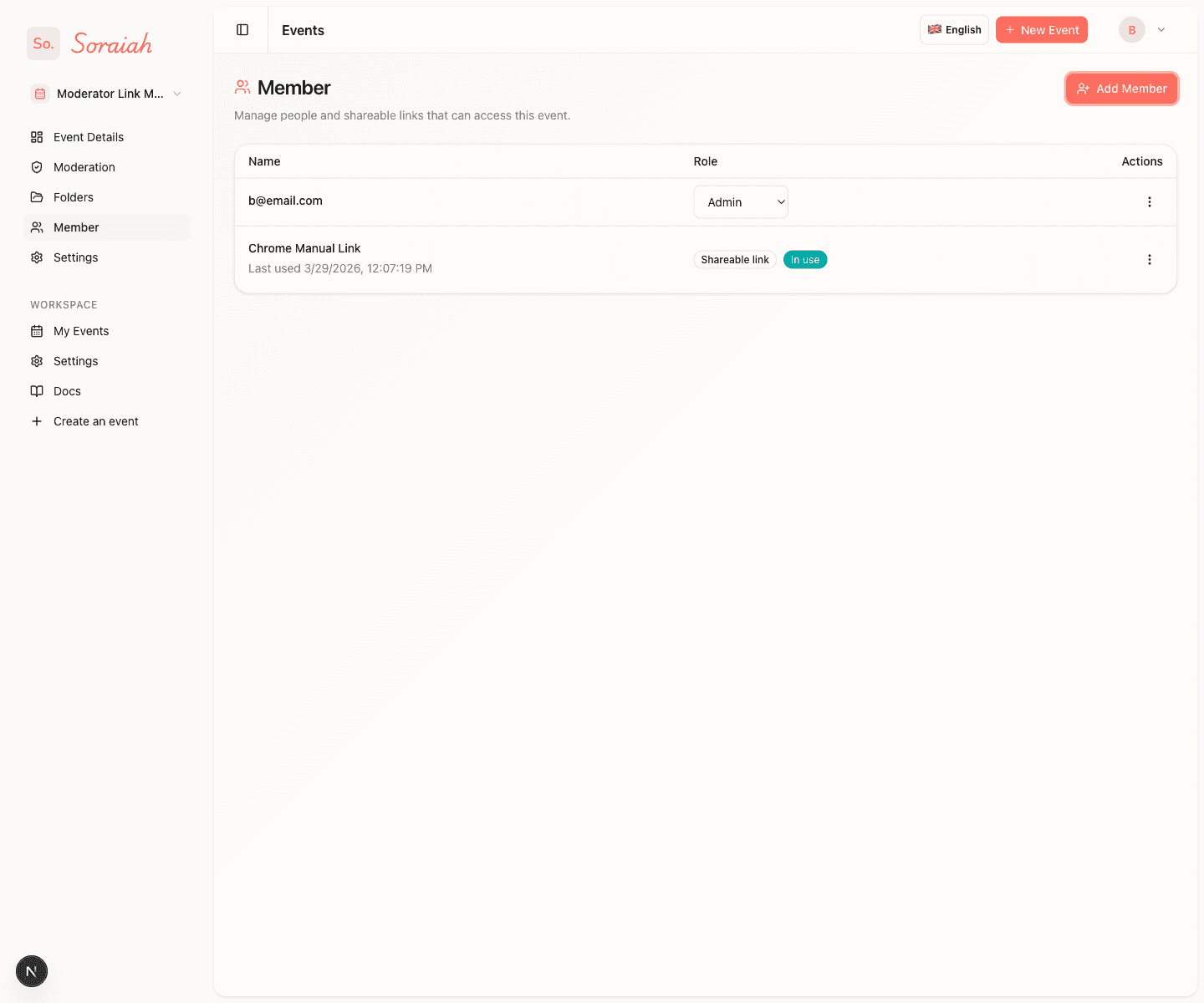
Use the Member page inside an event when someone else needs to help review uploads.
Before you start
- Moderator access requires a plan that includes moderators.
- Moderators can review uploads for the event.
- Use Admin only when someone also needs broader event control.
Option 1: Existing account
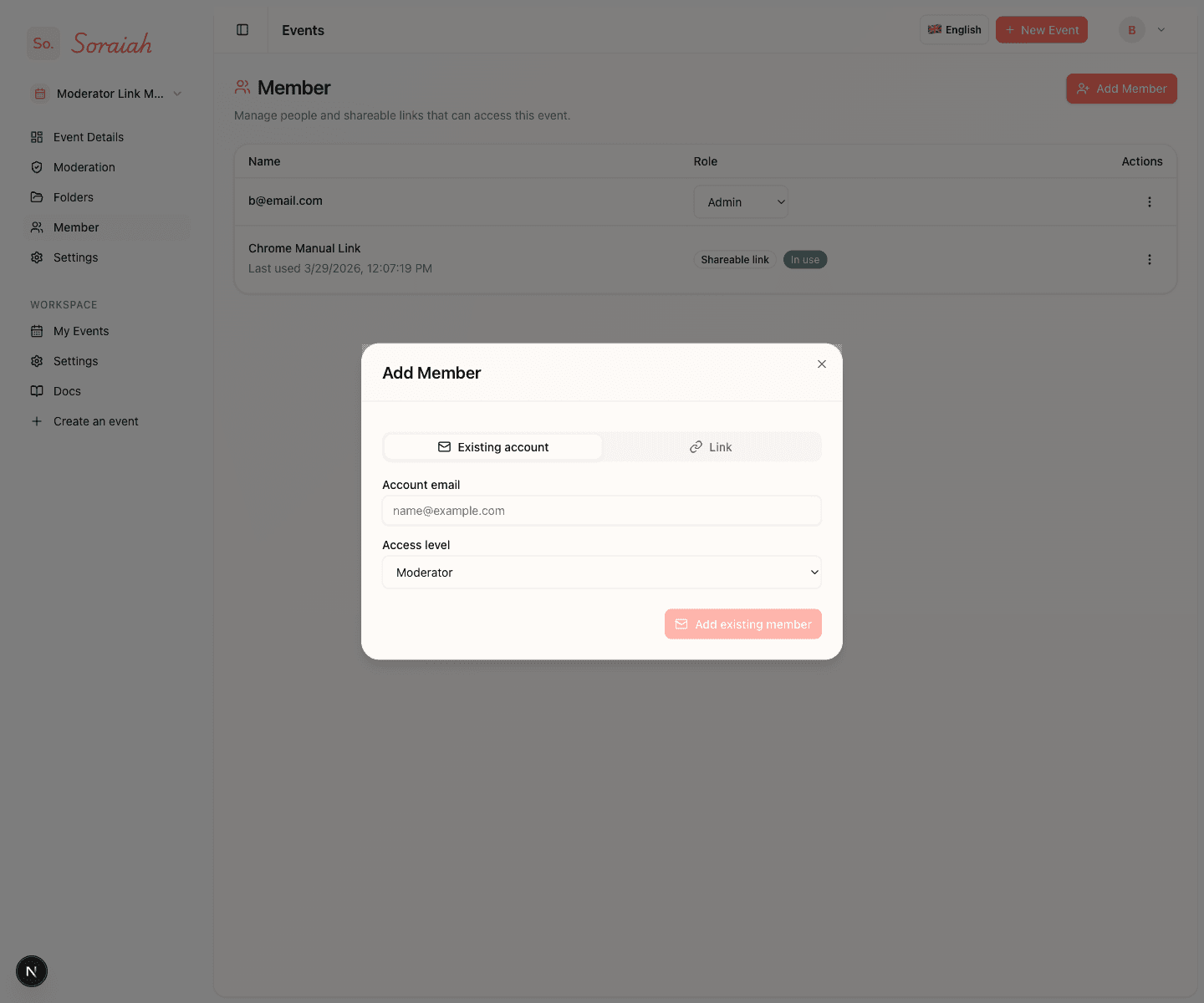
Choose Existing account if the person already has a Soraiah account.
- Open the event and go to Member.
- Select Add Member.
- Stay on the Existing account tab.
- Enter their account email.
- Pick the access level.
- Select Add existing member.
Important:
- This only works if that email already exists in Soraiah.
- If the account does not exist yet, the dialog will tell you to use the Link tab instead.
Option 2: Shareable link
Choose Link if you do not know whether the person already has an account, or if you want the fastest handoff.
- Open the event and go to Member.
- Select Add Member.
- Open the Link tab.
- Add an optional label so you know who the link is for.
- Create the link and share it with the moderator.
What happens next:
- The link is copied immediately after creation.
- The moderator can open the link and start moderating without a username or password.
- You can regenerate or revoke the link later from the same page.
Which option should I use?
- Use Existing account when you know they already use Soraiah.
- Use Link when they are new, unsure, or you need the lowest-friction option.